

It is now possible to upgrade Linux Mint 22, 22.1 and 22.2 to version 22.3.
If you’ve been waiting for this, we’d like to thank you for your patience.
1. Create a system snapshot
You can use Timeshift to take a system snapshot before the upgrade.
If something goes wrong, you can easily restore your operating system to its previous state.
Launch Timeshift from the application menu, follow the on-screen instructions to configure it and create a system snapshot.
2. Prepare for the upgrade
If you have installed Cinnamon spices (applets, desktop chat, extensions, themes), upgrade them from the System Settings.
3. Upgrade the operating system
Upgrading to Linux Mint 22.3 is quick and easy.
In the Update Manager, click the Refresh button to check for any new version of mintupdate or mint-upgrade-info. If there are updates for these packages, apply them.
Start the system upgrade by clicking “Edit->Upgrade to Linux Mint 22.3 Zena”.
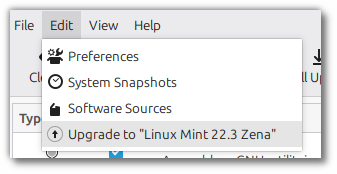
Follow the instructions on the screen.
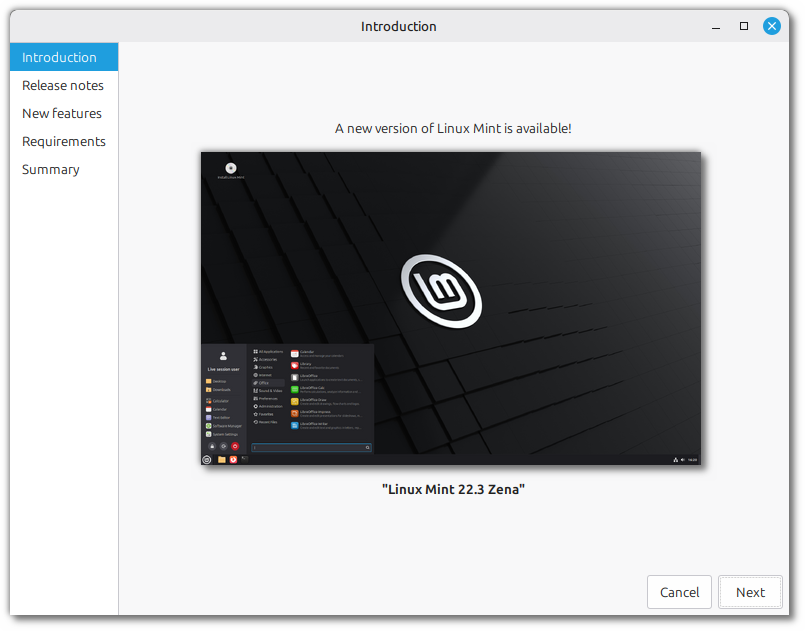
When asked whether to keep or replace configuration files, choose to replace them.
4. Reboot the computer
Once the upgrade is complete, reboot your computer.
General questions
- If the upgrade is not available for you, make sure you have the latest version of mint-upgrade-info (1.3.0 or higher) and restart the Update Manager by launching it again from the application menu.
- If the latest version of mint-upgrade-info is not yet available in your mirror, switch to the default repositories.
- This rarely happens, but if you ever got locked out and couldn’t log back in, switch to console with CTRL+ALT+F2, log in, and type “killall cinnamon-screensaver” (or “killall mate-screensaver” in MATE). Use CTRL+ALT+F7 to return to your session.
- Cinnamon Edition: The main menu has been redesigned. To avoid using a mix of old and new settings, we recommend that you reset your menu settings after the upgrade. Upgrade, reboot, login again and then right click on your Cinnamon menu, “Configure…”, hit the burger menu (top right) and select “Reset to defaults”.

![[keyword]](https://learnxyz.in/wp-content/uploads/2026/02/How-to-Setup-and-Connect-OpenVPN-Access-Server-on-Ubuntu.png)
![[keyword]](https://learnxyz.in/wp-content/uploads/2026/02/Test-Update-2026-01-03-COSMIC-101-Budgie-NVIDIA-Driver-Assistant.jpeg)