

![[keyword]](https://learnxyz.in/wp-content/uploads/2026/04/How-to-Install-SuiteCRM-on-Ubuntu-2604.webp.webp)

SuiteCRM is an open source CRM solution designed to optimize sales processes, CRM marketing and customer service. With its modules, SuiteCRM offers comprehensive tools for managing leads, creating PDF templates for quotes and invoices, generating CRM reports, and more. Users can customize SuiteCRM by adding or removing modules, renaming them, and adjusting fields, layouts, and module relationships to suit their needs. In this article, we will show you how to install SuiteCRM on Ubuntu 26.04
Prerequisites
- An Ubuntu 26.04 VPS with at least 4 GB of RAM
- SSH access with sudo rights, or root access
conventions
# – given commands should be executed with root privileges either directly as a root user or by use of sudo command
$ – given commands should be executed as a regular user
Step 1. Update the system
First, we need to login to our Ubuntu 26.04 VPS via SSH:
ssh master@IP_Address -p Port_numberReplace “master” with a user who has sudo rights or root if necessary. Also replace “IP_Address” and “Port_Number” with your server’s respective IP address and SSH port number. Next, let’s make sure we’re on Ubuntu 26.04. You can verify this with this command:
$ lsb_release -aYou should get this as the output:
No LSB modules are available.
Distributor ID: Ubuntu
Description:  Ubuntu Resolute Raccoon
Release:  26.04
Codename: resolute
Then run the following command to make sure that all installed packages on the server are updated to their latest available versions:
$ sudo apt update That’s it, your system’s local list of available software packages and their versions from online repositories should now be updated.
Step 2. Install PHP
Ubuntu 26.04 ships with PHP 8.4, and currently SuiteCRM 8.9.x supports this PHP version. Let’s install PHP 8.4 and its extensions from the default Ubuntu repository.
# sudo apt install php-{bcmath,common,curl,fpm,intl,mbstring,mysql,soap,xml,xsl,zip,cli}Next, we need to change the following settings in the php.ini file:
upload_max_filesize = 2MThe upload_max_filesize must be set to at least 6M
$ sudo nano /etc/php/8.4/cli/php.iniFind the string upload_max_filesize and change the value. Then restart php-fpm to apply the changes.
$ sudo systemctl status php8.4-fpmStep 3. Install MariaDB Server
Ubuntu 26.04 ships with MySQL 8.4 and MariaDB 11.8. At the time of this writing, MariaDB 11.8 is supported by SuiteCRM. Let’s install MariaDB server now.
$ sudo apt install mariadb-serverOnce installed, MariaDB should be up and running. We can proceed with creating a new database and its user for our SuiteCRM website.
$ sudo mysql After logging into MySQL shell we can run it.
mysql> CREATE DATABASE suitecrm;
mysql> CREATE USER 'suitecrm'@'localhost' IDENTIFIED BY 'm0d1fyth15';
mysql> GRANT ALL PRIVILEGES ON suitecrm.* TO 'SuiteCRM'@'localhost';
mysql> FLUSH PRIVILEGES;
mysql> \q
Step 4. Install and configure Apache
In this article we will use Apache as the web server. Let’s install it now.
$ sudo apt install apache2 -yThen we need to create an Apache virtual host for our SuiteCRM website.
$ sudo nano /etc/apache2/sites-enabled/suitecrm.confInsert the following into the file.
    ServerName suitecrm.yourdomain.com
    DocumentRoot /var/www/html/suitecrm/public

    # Proxy to PHP-FPM

        SetHandler "proxy:unix:/var/run/php/php8.4-fpm.sock|fcgi://localhost/"


        Options Indexes FollowSymLinks
        AllowOverride All
        Require all granted


    # Other directives for logs, security, etc.
Be sure to replace suitecrm.yourdomain.com with your current domain or subdomain name that already points to your server. Save the file and then exit. We also need to enable the mod rewrite.
$ sudo a2enmod rewrite
$ sudo systemctl restart apache2
Step 5. Install SuiteCRM
To install SuiteCRM, we need to download the installation file first. Let’s download it now.
$ wget https://suitecrm.com/download/166/suite89/566057/suitecrm-8-9-2.zipThe SuiteCRM installation file may have a newer version by the time you read this article. To get the most recent version, you can download the SuiteCRM download page.
Once downloaded, we can extract the file.
$ sudo unzip suitecrm-8-9-2.zip -d /var/www/html/suitecrm8Now we need to change the permissions.
$ sudo chown -R www-data: /var/www/html/suitecrm8
$ cd /var/www/html/suitecrm8
$ sudo find . -type d -not -perm 2755 -exec chmod 2755 {} \;
$ sudo find . -type f -not -perm 0644 -exec chmod 0644 {} \;
$ sudo find . ! -user www-data -exec chown www-data: {} \;
$ sudo chmod +x bin/console
If you want to install it interactively, you can choose option 1 below.
Option 1 – Running
$ sudo -u www-data ./bin/console suitecrm:app:install without any options, the command will prompt you for the required options
Option 2 – Running
# sudo -u www-data ./bin/console suitecrm:app:install -u "admin_username" -p "admin_password" -U "db_user" -P "db_password" -H "db_host" -N "db_name" -S "site_url" -d "demo_data"In the previous step, we created a database and a database user. We can use the database details and run the full command with options.
# sudo -u www-data ./bin/console suitecrm:app:install -u "suitecrm" -p "2Y4kuYwFMaMWgxHH" -U "suitecrm" -P "m0d1fyth15" -H "localhost" -N "suitecrm" -S "http://suitecrm.yourdomain.com" -d "yes"Wait for it to finish; you will see a message like this at the end.
SuiteCRM Silent Install
============

Running: check-route-access
step: check-route-access | status: done
One or More Failed Checks: The SuiteCRM Title cannot be found. This is not a valid SuiteCRM Page. Please refer to the logs/install.log
One or More Failed Checks: The result of the curl call to the graphql page was empty. Please refer to the logs/install.log
One or More Failed Checks: Please refer to the logs/install.log
Running: check-install-lock
step: check-install-lock | status: done
Installer not locked. Proceeding with install
Running: check-db-connection
step: check-db-connection | status: done
DB credentials ok
Running: install-system-checks
step: install-system-checks | status: done
Running: create-config
step: create-config | status: done
Created silent install config: config_si.php
Running: create-env
step: create-env | status: done
Created .env.local
Added randomly generated APP_SECRET
Running: run-legacy-install
step: run-legacy-install | status: done
SuiteCRM Installation Completed
Running: check-cron-user
step: check-cron-user | status: done
root has been added to the allowed_cron_users list. This is not recommended.
However, if you really want to allow root to run cron jobs, please remove the suffix _REMOVE_THIS_NOTICE_IF_YOU_REALLY_WANT_TO_ALLOW_ROOT from the entry.

============
At this point you should be able to access SuiteCRM with your domain name at http://suitecrm.yourdomain.com. For more information about SuiteCRM, its features and configuration, please check their official documentation.
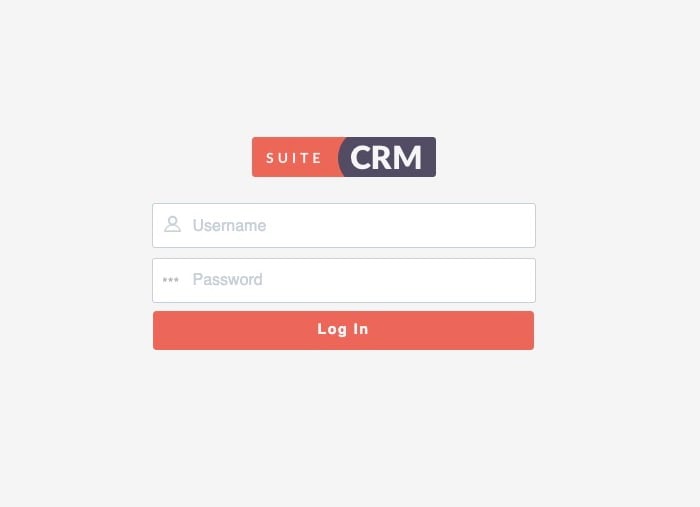
You should be able to log in with the credentials we used during the installation.
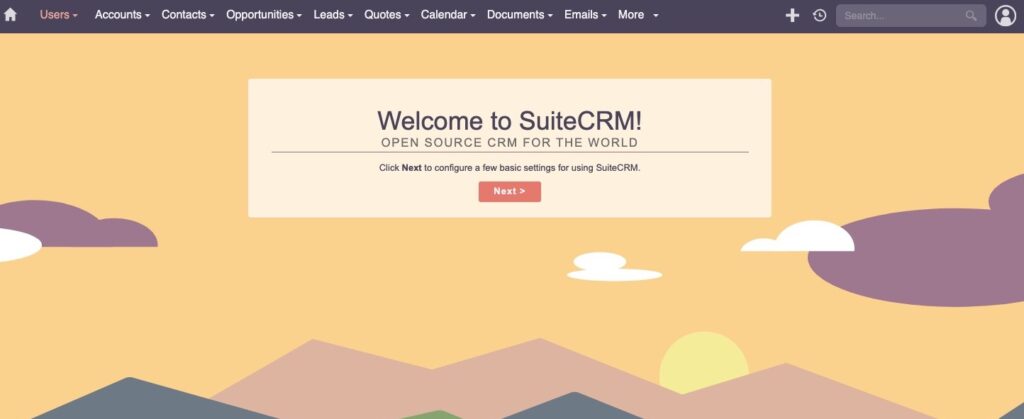
Once you’re logged in, you can start setting up your SuiteCRM website.
Final Thoughts
You do not need to install SuiteCRM on Ubuntu 26.04 if you have an active server management service with us, in which case you can simply ask our expert Linux administrators to install SuiteCRM on Ubuntu 26.04 for you. They are available 24×7 and will address your request immediately. Managing SuiteCRM instances is not just about the installation; we can help you optimize your SuiteCRM installation, even if you don’t have an active service with us, using our per incident server support.
If you liked this post on how to install SuiteCRM on Ubuntu 26.04, please share it with your friends or leave a comment below.


![[keyword]](https://learnxyz.in/wp-content/uploads/2026/03/1772316563_क्या-आप-अपना-भविष्य-चुनने-के-लिए-तैयार-हैं.png)
![[keyword]](https://learnxyz.in/wp-content/uploads/2026/02/Manjaro-260-Anh-Linh-released-Releases.svg.svg+xml)
![[keyword]](https://learnxyz.in/wp-content/uploads/2026/03/1773757433_4-विंडोज़-सेवाएँ-जिन्हें-अक्षम-करना-सुरक्षित-है-और-3.jpg)